
Some digital tools put everything in front of you — menus, toolbars, buttons stacked in every corner, endless scrolling cards, links everywhere. Others clear the view and show you only what’s needed on that screen. That second approach has a name: minimalist interface design. And once you understand the logic behind it, you start seeing digital tools differently. But there’s a catch: minimalism taken too far demands that users learn to operate your tool or site on its own exclusive terms, as if they’ve never touched a digital product before. And that’s not good for anyone.
What is a minimalist interface?
A minimalist interface isn’t an incomplete one. It’s one that made deliberate decisions about what to surface and what to tuck away, with one goal: keeping you in your workflow. The designer chose what goes up front and what stays a step back.
Minimalism in design doesn’t mean wiping everything clean and leaving an empty screen. Minimalism is the judgment to know what to show and when.

The controls didn’t disappear — they moved
In minimalist interfaces, features don’t get removed — they get relocated to places that make sense within the natural flow of use. The control exists, but it lives where the designer decided it should, not necessarily where you’d look first.
That can feel like friction at first. You look for something, it’s not in plain sight, and the line between a clean screen and an “unintuitive” tool is very thin. If the minimalism is well executed, a closer look will get you there. If the tool demands you learn an entirely new logic, something’s off.
When minimalism becomes a problem
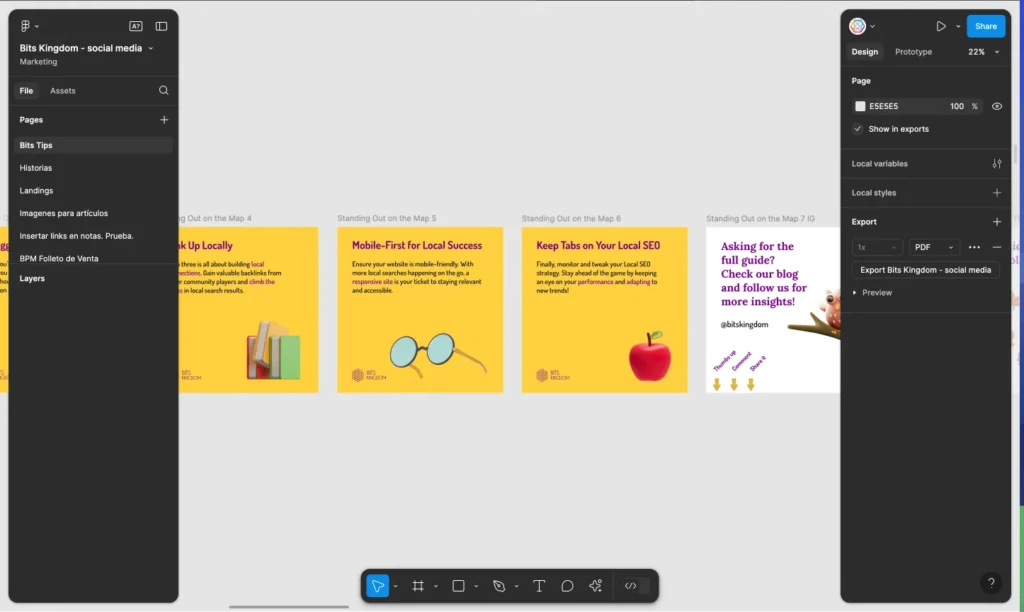
Figma tried to make its interface more minimalist in 2024 with the release of UI3, introducing floating panels detached from the screen edges. The idea was to give more visual space to the canvas and reduce interface “weight.” Instead, many users felt the opposite: visual confusion, a sense of disorder, and less efficient use of space.
After a strong backlash from the community, Figma reversed course and returned to traditional fixed panels. The episode became a clear example of how visual minimalism can hurt usability when it prioritizes aesthetics over function.
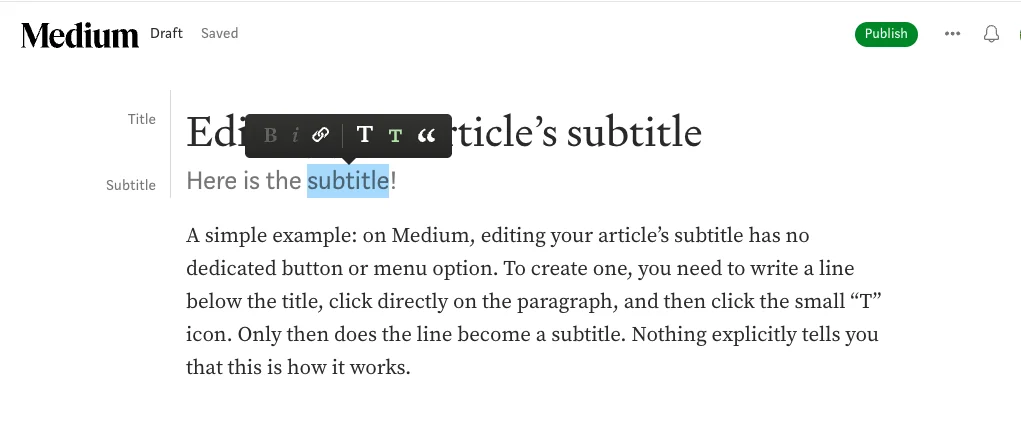
A less successful example is Medium, the king of minimalism among text editors. Creating a subtitle for your article isn’t easy or intuitive. There’s no dedicated button for it, no menu option. You have to type the text below the title, select it, and click on it to reveal a set of options. Then click the smaller T, and the text becomes a subtitle. Nothing tells you this explicitly — and that’s a problem. Unless you publish on Medium regularly, next month you’ll forget where the trick was and get frustrated all over again.
Sometimes tool makers assume you’ll learn their exclusive “grammar” — as if you had nothing better to do than adapt to a new design every time they decide to refresh their product.
Why this design approach exists (and why it works)
There’s a real reason for it: showing every option all the time creates cognitive noise. Every visible button is a decision you have to actively ignore. Interfaces that prioritize content over controls bet that once you’ve learned the layout, your work will flow without interruption.
That bet pays off especially well in creative tools — writing platforms, design apps, project management software. The less interface you see, the more attention goes to the actual work.
What to do when you can’t find what you’re looking for
When a feature isn’t where you expect it, there’s a reliable order of steps to try. It’s not trial and error — it’s learning to read the design.
- Click directly on the element. In minimalist interfaces, editing options often appear when you interact with the content itself, not a separate menu.
- Try right-clicking. The context menu frequently holds actions that have no visible spot in the main interface.
- Hover over it. Moving your cursor over an element sometimes reveals controls that stay hidden until you do.
- Check the official docs. Minimalist tools tend to have solid documentation precisely because they know their interface requires a learning curve.
- Search forums or communities. If the problem exists, you’re probably not the only one who ran into it. And if there’s no solution, at least you can commiserate with people dealing with the same thing.
You only have to learn the path once
The learning curve on a minimalist interface is real, but it’s short. Once you internalize where the controls live, they stop being obstacles and become part of a workflow that feels like your own. The tool gets out of the way.
And that, ultimately, is exactly what well-executed minimalism is after: make the tool disappear, and leave just the work.
